
NotebookLM for Nonprofits: The Honest 2026 Guide
What it does (with examples), what it can't, and how to roll it out right

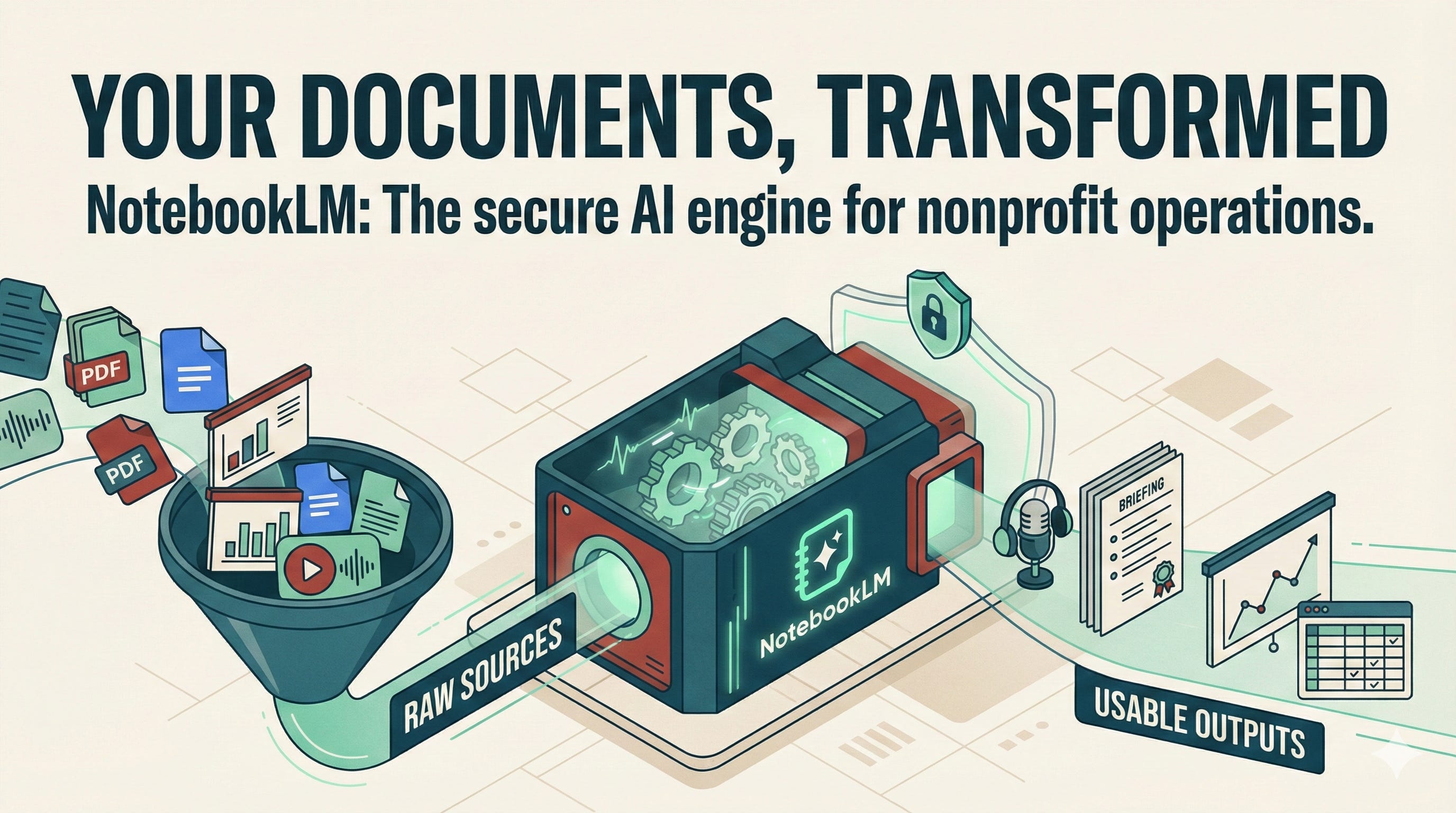
Most AI tools promise to know everything. NotebookLM only knows what you give it. That difference changes everything for nonprofits.
At Furniture Bank, we don’t need an AI that knows everything. We need one that knows our annual report, our grant applications, our program data, and can answer questions without making things up.
I started experimenting with NotebookLM in December 2023. Since then I have built over 70 notebooks across executive strategy, fundraising, operations, training, and AI adoption. This guide is what I wish someone had handed me before we started. Not the demo version. The operational version. What it actually does, what it cannot do, and how to roll it out so your team uses it instead of ignoring it.
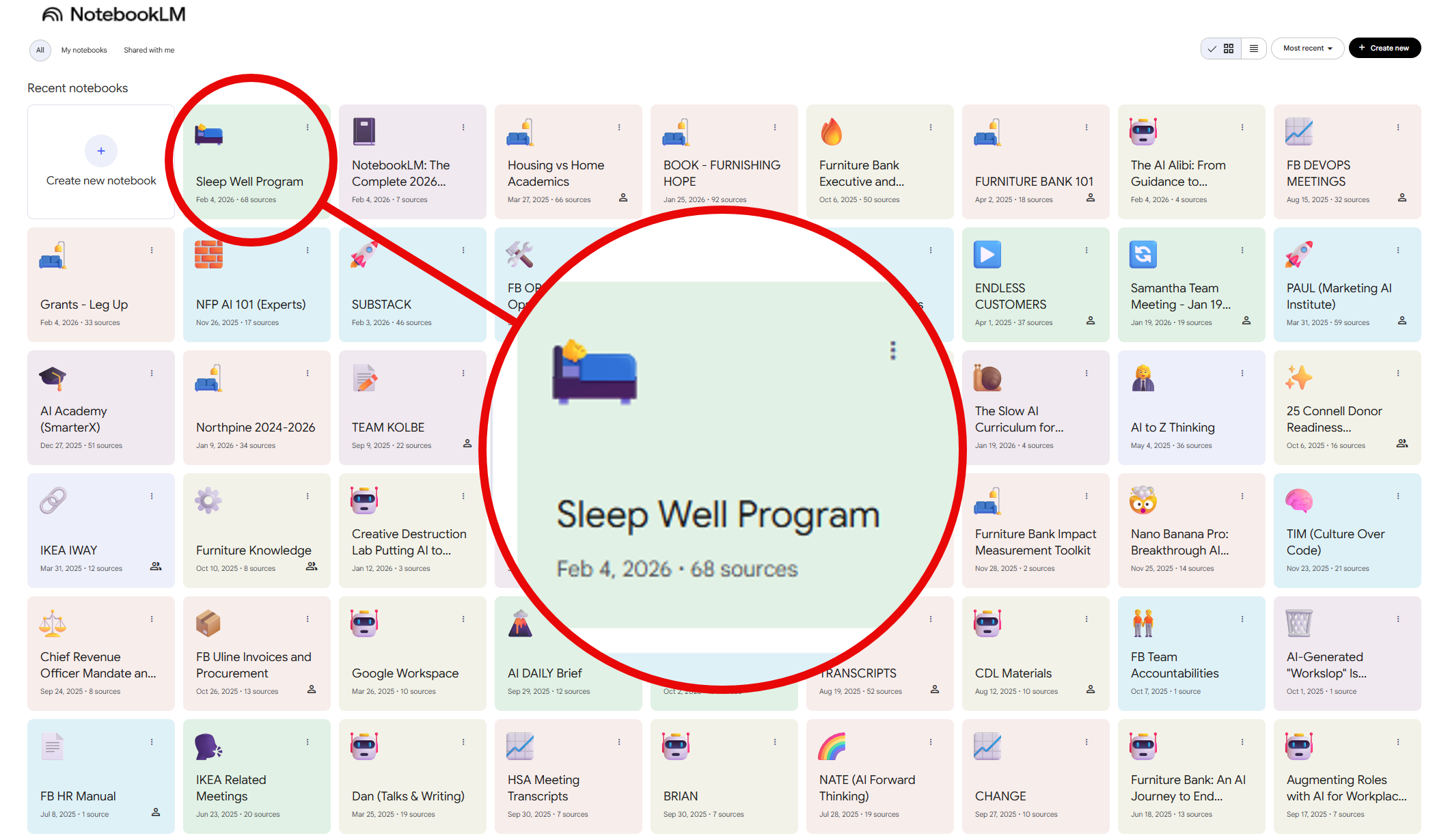
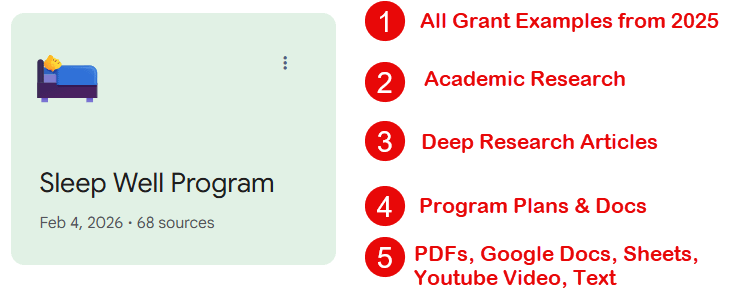
Throughout this primer I will use one of our Notebooks - Furniture Bank’s Sleep Well Program with exports embedded below!
What NotebookLM Actually Does
Most AI tools pull answers from the entire internet. NotebookLM only pulls from documents you upload. That single difference changes everything for nonprofits.
Here is what the tool actually does in 2026, organized by the four things that matter most.
1. It eats almost anything you feed it
PDFs, Google Docs, Slides, Sheets, audio files, images, YouTube videos, website URLs. If your organization’s knowledge lives in a messy mix of formats (and whose doesn’t), NotebookLM can absorb it into one searchable workspace. EACH source can hold up to 500,000 words. A single notebook holds 50 sources on the free tier, 300 on Plus. In context that is 50 books each 1500 pages long!
The practical implication: your operations manual, your last three annual reports, your strategic plan, and that recorded interview with your founder can all live in one notebook. Ask it a question and it pulls from all of them at once.
2. The Studio turns your documents into usable content
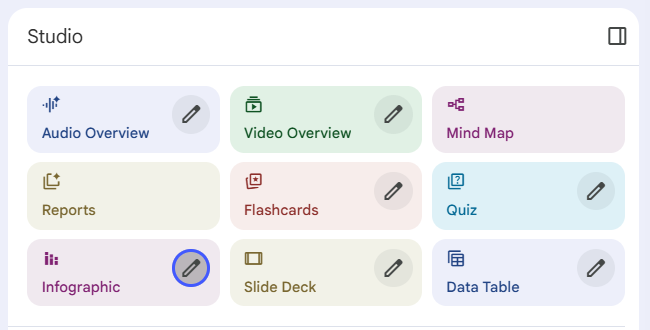
This is where NotebookLM stops being a research tool and starts being a production tool. The Studio panel on the right hand side lets you generate real outputs from your sources.
Audio Overviews create podcast-style conversations between two AI hosts who discuss your documents. Four formats: Deep Dive (10-30 minutes), The Brief (under 2 minutes), The Critique, and The Debate. In 2026, you can interrupt the hosts mid-conversation to ask follow-up questions. At Furniture Bank, I use these to prep for board meetings on my commute. Fifteen minutes of listening replaces an hour of re-reading.
Video Overviews produce narrated slide videos pulled directly from your sources, with customizable visual styles. Slide Decks export to Google Slides. Infographics export as PNGs. Briefing Documents, FAQs, Study Guides, and Data Tables round out the text outputs.
The practical implication: that means one notebook containing your program evaluation data can produce a board briefing document, a donor-facing infographic, a volunteer training quiz, and an audio summary for your ED. Same source material, five different outputs, no designer or writer required.
3. It connects to the rest of Google’s ecosystem
Two moves here matter for nonprofits. First, you can now attach a NotebookLM notebook as a source inside the Gemini app (new in last 30 days). That means your curated knowledge base travels with you across Google’s tools. Second, Deep Research mode sends an autonomous agent to search hundreds of websites, compile findings, and bring them back as new sources in your notebook. Think of it as a research assistant who works overnight and leaves a cited report on your desk.
The practical implication: Everything exports to Drive, Docs, and Sheets. The workflow stays inside the tools your team already uses.
4. It stays inside the guardrails nonprofits need
NotebookLM only answers from your uploaded sources. It does not browse the internet for answers unless you specifically use Deep Research mode. Every response includes inline citations your staff can click to verify. For organizations on Google Workspace for Nonprofits, your data is not used to train Google’s AI models. And sharing is restricted to your organization’s domain by default, which prevents accidental data leakage to external parties.
The practical implication: your program coordinator can ask NotebookLM a question about last quarter’s outcomes and get a cited, verifiable answer grounded in your actual data. Not a guess. Not a hallucination. A traceable answer.
What the Studio Panel Actually Produces
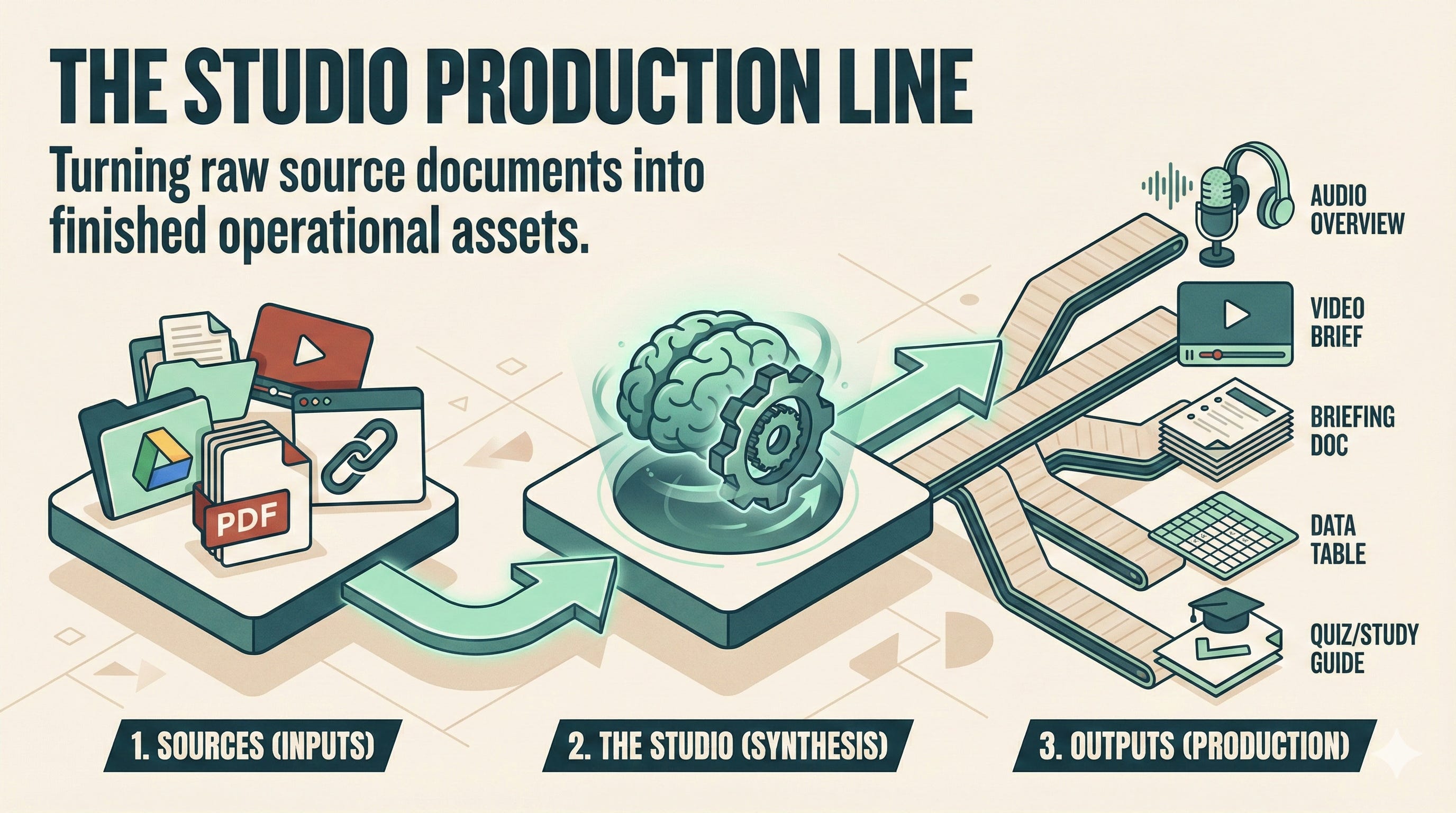
NotebookLM’s Studio panel is where the tool stops being a search engine for your documents and starts being a production tool. You upload your sources on the left. You ask questions in the middle. And on the right, the Studio turns those same sources into finished outputs your team can actually use.
At Furniture Bank, this is where the time savings live. Not in the chat. In the Studio.
1. Audio Overviews: the one that surprises people
Two AI hosts sit down and have a conversation about your documents. It sounds like a podcast. It pulls directly from your sources, so the content is grounded in your actual data, not internet noise.
Four formats exist.
Deep Dive runs 15-30 minutes and covers the material thoroughly.
The Brief runs under two minutes and works like a pre-meeting summary.
The Critique gives your document a constructive evaluation.
The Debate explores both sides of a question your sources address.
The 2026 update added Interactive Mode, which lets you interrupt the hosts mid-conversation to ask follow-up questions. If they mention a budget line you don’t understand, you jump in and ask. They clarify, then continue. It turns passive listening into active learning.
In practice, this means a 30-page board packet becomes a two-minute Brief your board chair listens to before the meeting. A volunteer training manual becomes a Deep Dive new recruits listen to on the subway. Same documents. Different access point.
One constraint worth knowing: Interactive Mode currently works in English only, even though standard Audio Overviews support 80+ languages.
Audio Example: Furniture Bank’s Sleep Well Program
2. Video Overviews: narrated slide presentations from your sources
NotebookLM pulls diagrams, quotes, and images from your uploaded documents and assembles them into narrated video walkthroughs. Two lengths: Explainer (6-10 minutes) for depth, Brief (1-2 minutes) for quick updates. Six visual styles including Classic, Whiteboard, and Watercolor.
You steer the output using what amounts to a five-part prompt: what action you want, what topic to cover, which sources to draw from, who the audience is, and what constraints apply. Telling it “create an upbeat two-minute explainer for new donors about our youth furniture program” gets you a very different video than “create a detailed walkthrough of our Q3 outcomes for the board.”
My honest assessment: Video Overviews are good for internal communication and donor stewardship where polish matters less than clarity. They are not replacing your professional fundraising videos. They are replacing the ones you never had time to make in the first place.
Video Example: Furniture Bank’s Sleep Well Program
3. Slides, Infographics, and Mind Maps: visual assets without a designer!
The 2026 integration of Nano Banana Pro (Google’s image model) means the Studio can generate visual assets that are tied directly to your source data. GAME CHANGER!
Slide Decks come in two flavors. Detailed decks are text-heavy and meant for reading. Presenter decks are visual-forward and meant for speaking. Both export as PDFs or open directly in Google Slides for editing. At Furniture Bank, this means a program evaluation notebook can produce a draft board presentation in under a minute. It is a draft. It needs human editing. But it is a draft that would have taken someone two hours to create from scratch.

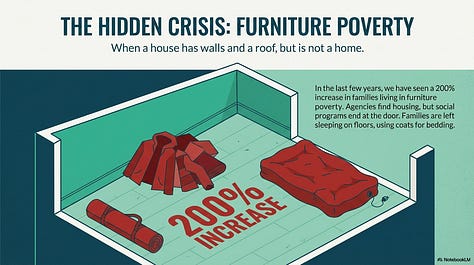
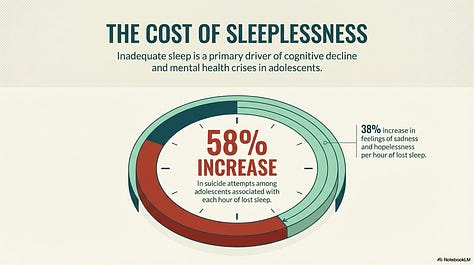
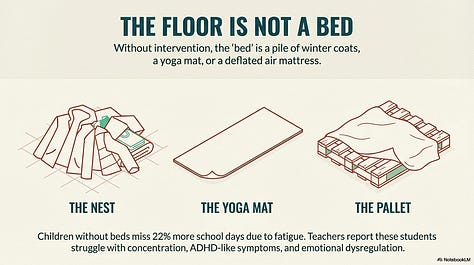
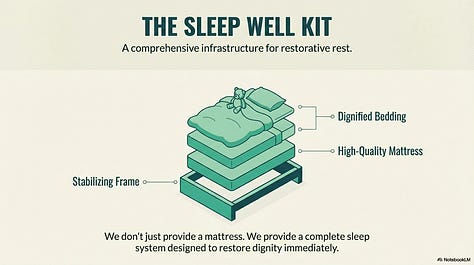
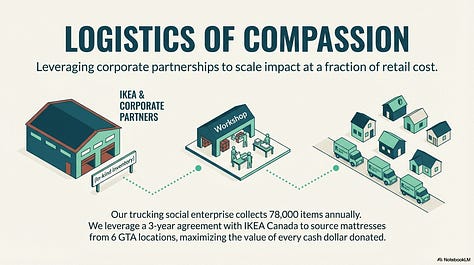
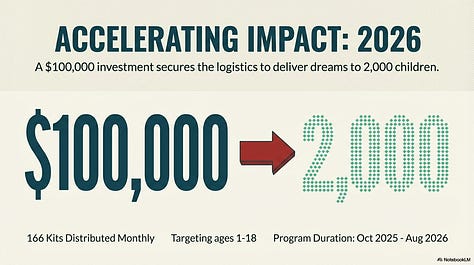
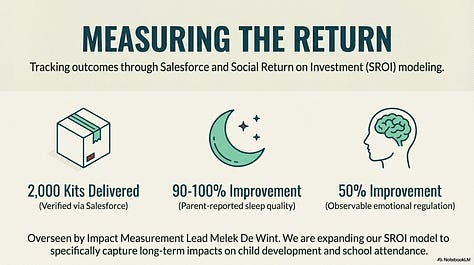

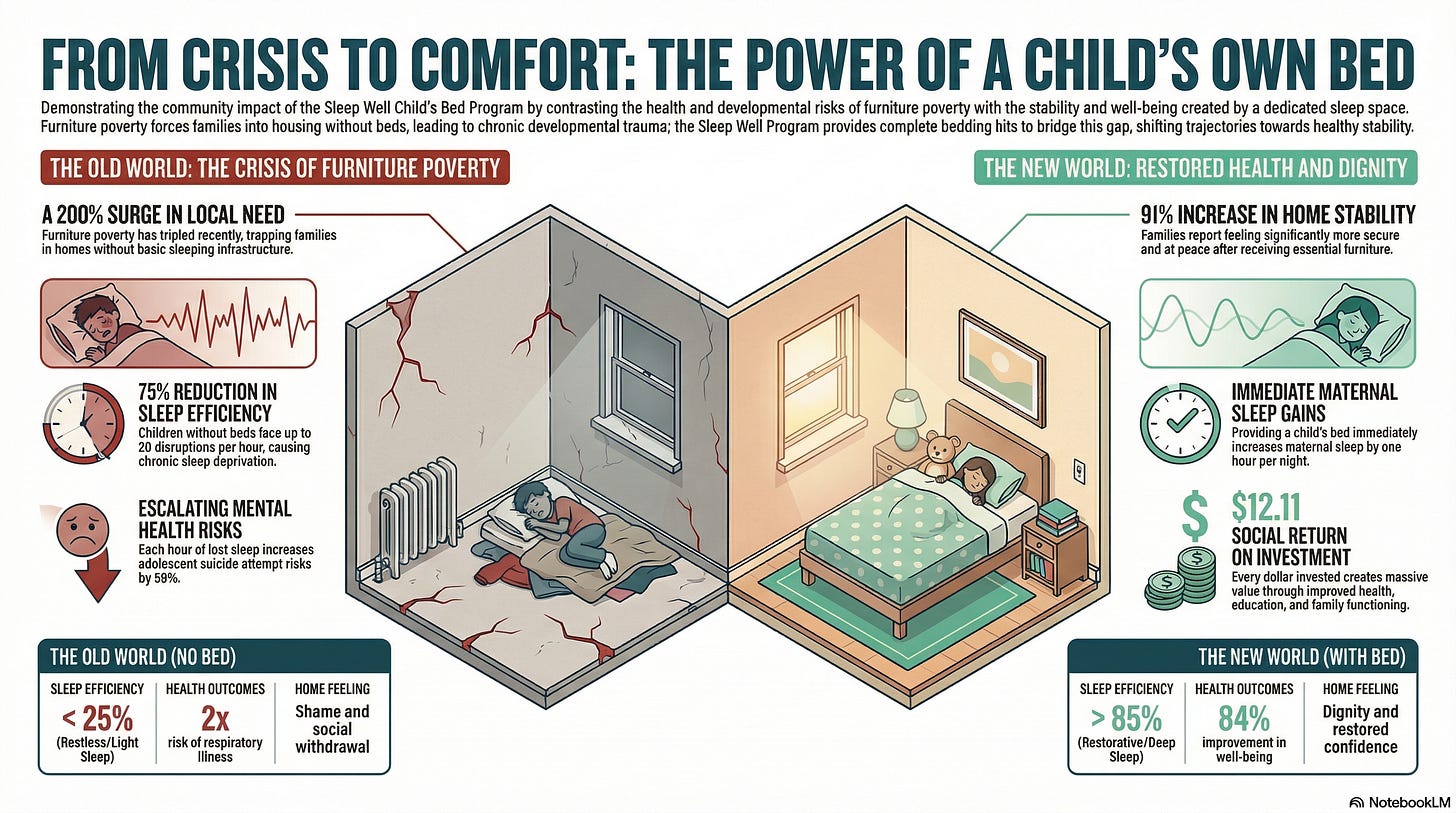
"Create a presentation for a major gift prospect focused on supporting 2000 kids beds" Infographics produce one-page impact summaries in square, portrait, or landscape format. You can toggle detail levels between concise, standard, and detailed depending on whether the audience is a Twitter follower or a board member. These export as PNGs. Power Move: Prompt your infographics with the specifics you want extracted.
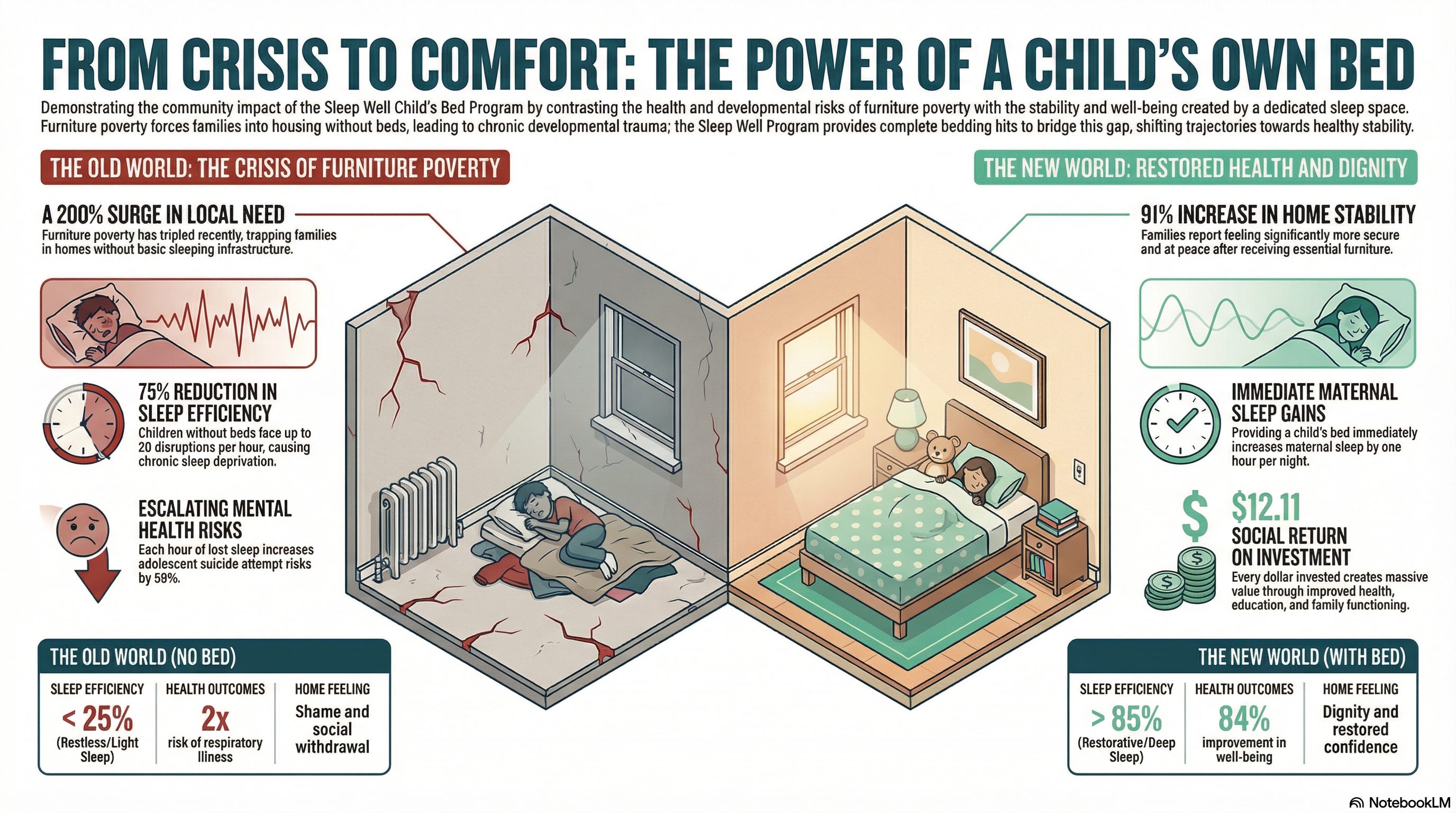
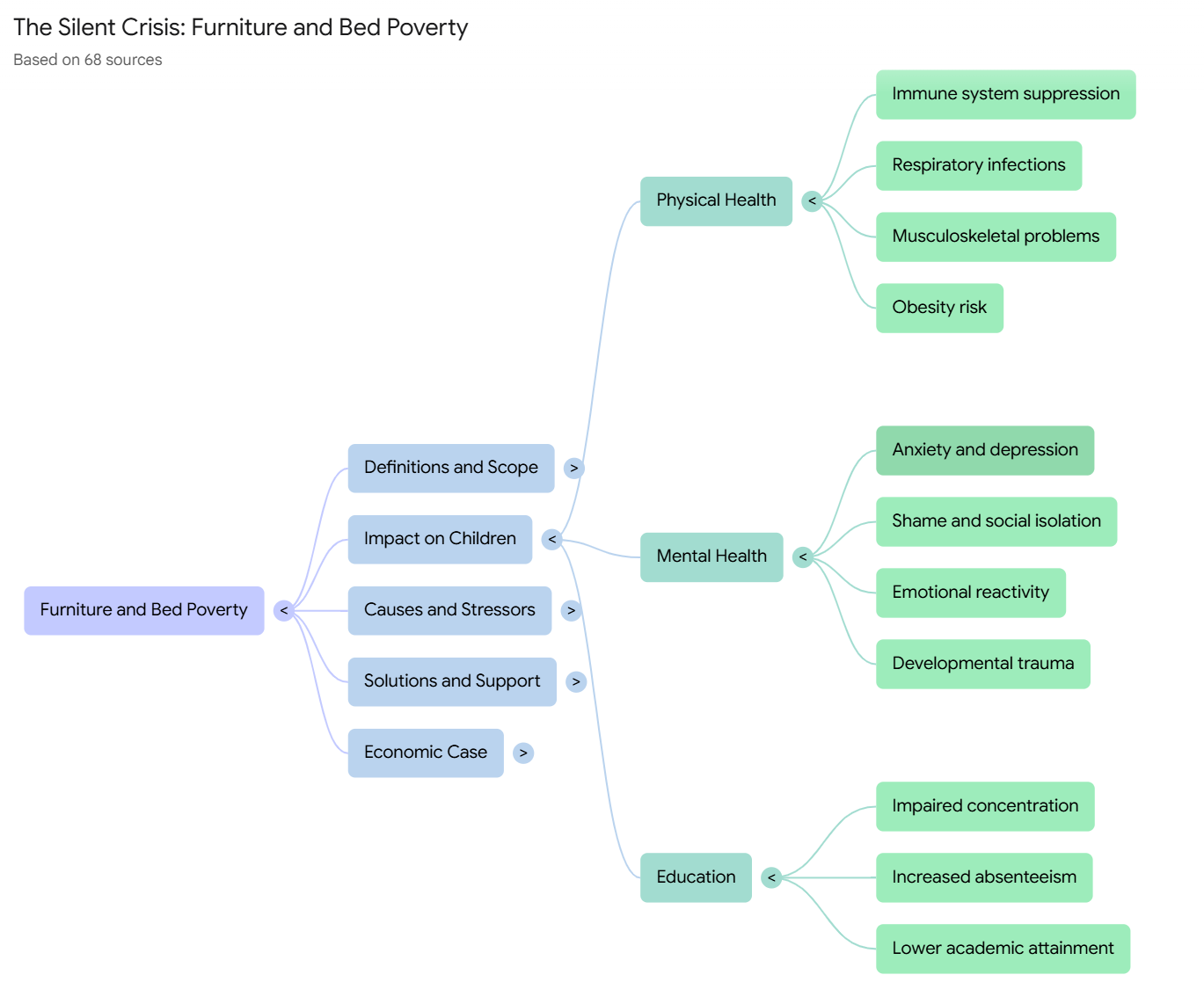
Mind Maps visualize how concepts in your documents connect. Click a node and it expands. Useful for breaking down a complex strategic plan or mapping the requirements of a new grant guideline. Mobile support is limited, so use these on a laptop. Power Move: With your topic mindmap - click on a node you want a full chat answer too.


4. Text outputs: the workhorse formats
These are less flashy but arguably the most useful for daily operations.
Briefing Documents produce 1-3 page executive summaries. FAQs generate question-and-answer pairs with citations, which is exactly what your intake team needs when a new policy drops. Study Guides include essay prompts and glossaries for deeper learning. Customize your own with your own requirements.
Data Tables convert narrative information into structured rows and columns exportable to Google Sheets. Think: turning a stack of volunteer applications into a skills matrix, or converting scattered program reports into a comparison table.
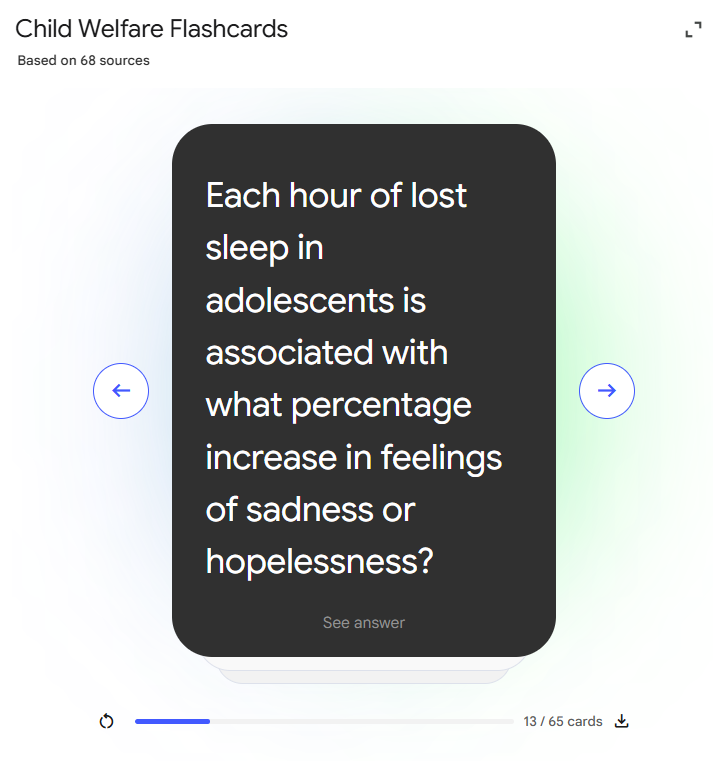
Flashcards and Quizzes generate training aids from your source material. Useful for volunteer onboarding, compliance training, or testing whether staff actually absorbed that new safety manual.
What NotebookLM Does and Does Not Protect
1. The sharing rule every nonprofit needs to understand
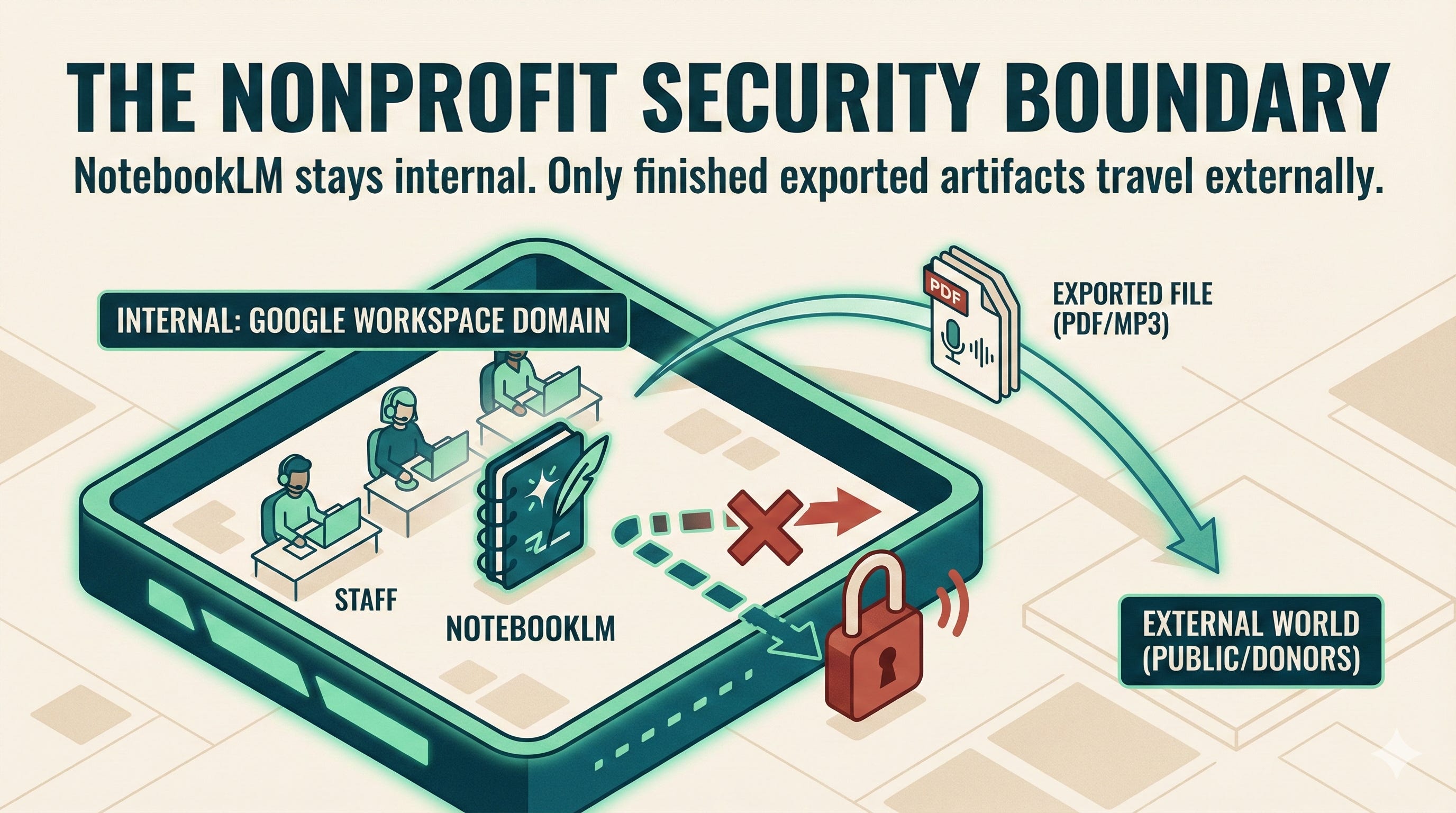
Here is the constraint that catches people. If your organization uses Google Workspace, NotebookLM notebooks generally cannot be shared outside your domain via link. You cannot send a board member at another organization a link to your notebook and expect it to work.
The workaround is straightforward: download the output. Audio Overviews download as MP3s. Videos as MP4s. Slides as PDFs. Infographics as PNGs. Then share through whatever channel you already use.
The recommended workflow is synthesis-to-polish. Use NotebookLM to generate the draft. Export it to Docs, Slides, or Sheets. Do your final editing there. Distribute from there. NotebookLM is the engine. Google Workspace is the showroom.
2. Your data is NOT training Google’s AI
Most nonprofit leaders I talk to have the same first question about any AI tool: “Where does our data go?”
It is the right question. And the answer for NotebookLM is better than most, with real caveats that matter.
If your organization uses Google Workspace for Nonprofits, the documents you upload, the questions you ask, and the answers you get back are not used to train Google’s models. Human reviewers at Google do not see your data, even when staff click the thumbs-up or thumbs-down buttons on a response. This is the baseline promise, and it is the right one for mission-driven organizations handling community information.
The critical distinction: this protection applies to Workspace and Enterprise accounts. If someone on your team logs into NotebookLM with a personal Gmail account, different rules apply. Their feedback may be reviewed by humans. License management is not a technicality. It is a security decision. Make sure your team is logging in with their organizational email.
3. Source grounding is itself a governance feature
NotebookLM only answers from the documents you upload. It does not browse the internet for supplementary information (unless you specifically activate Deep Research mode). Every response includes inline citations pointing back to exact passages in your sources.
At Furniture Bank, this matters enormously. When we use NotebookLM for board reporting or grant preparation, the answers are traceable. A board member can click a citation and verify the claim against the original document. That is not just a convenience feature. For grant compliance and donor accountability, it is the difference between “the AI said so” and “here is the source.”
4. The sharing wall you need to plan around
Here is the constraint that will shape your workflow. If your organization uses Google Workspace, NotebookLM notebooks can only be shared with people inside your domain. You cannot generate a public link. You cannot invite an external board member, a donor, or a partner organization to view your notebook directly.
This is a security feature, not a bug. It prevents accidental data leakage. But it means you need a deliberate workflow for anything that leaves the building.
The approach that works:
Generate the output inside NotebookLM.
Download it as a PDF, MP3, PNG, or MP4.
Distribute through whatever channel you already use: email, Drive, your donor portal.
NotebookLM stays internal. The finished artifact travels externally.
5. What you must not upload
NotebookLM does not currently hold ISO, SOC, FedRAMP, or HIPAA compliance certifications. That is a real limitation for nonprofits handling sensitive data.
In concrete terms, your governance policy needs to prohibit uploading donor PII (names linked to giving amounts, addresses, payment details), client health records, financial documents containing banking or credit card information, and any data your organization handles under specific regulatory frameworks.
What is safe to upload: public-facing documents, strategic plans, annual reports, program evaluations (with client data anonymized), training manuals, grant guidelines, board meeting minutes, and published research. The general rule: if you would be comfortable emailing the document to an external partner, it is probably safe for NotebookLM.
6. The gaps you need to know
NotebookLM storage is separate from your Google Drive. Your existing Drive sharing settings, data region policies, and retention rules do not automatically carry over. Only Enterprise-tier customers can configure data residency within specific Google Cloud regions.
Some Studio features, including Video Overviews, Slide Deck generation, and Deep Research, are restricted to users over 18. If your organization relies on youth volunteers or serves young people directly, those users will not be able to access the full toolset.
At Furniture Bank, our rule is simple: if it touches client data, it stays out of NotebookLM. Everything else is fair game. That boundary gives our team the confidence to use the tool aggressively for the work it is good at, without risking the trust our families place in us.
That trust is not a governance checkbox. It is the mission.
What NotebookLM Cannot Do
Every tool demo shows you the highlights. Nobody walks you through the walls you will hit at 4 p.m. on a Tuesday when you are trying to get a board deck out the door.
Here are the walls.
1. Each notebook is an island
NotebookLM’s defining strength, that it only answers from your uploaded sources, is also its most significant constraint. The AI cannot see across notebooks. Your “Grant History” notebook and your “Strategic Plan” notebook exist in completely separate universes. You cannot ask a question that requires connecting information from both.
The practical implication: build notebooks around questions, not topics. A notebook called “Q3 Board Prep” that contains the financial statements, the program report, and the strategic plan will serve you better than three separate notebooks organized by document type.
2. Accuracy gets worse as notebooks get bigger
The source limits are generous on paper. Fifty sources on the free tier, 300 on Plus. Each source can hold 500,000 words.
But generous limits do not mean you should fill them. I have seen retrieval accuracy degrades as you approach the ceiling. The AI starts missing relevant passages, pulling less precise citations, and occasionally contradicting itself across responses.
So for critical nonprofit work (grant applications, board reporting, compliance documentation), smaller and more curated notebooks consistently outperform large ones. Five highly relevant sources will give you better answers than forty loosely related ones.
3. The sharing wall shapes your entire workflow
If your organization uses Google Workspace, notebooks can only be shared with people inside your domain. Not your board members on personal Gmail. Not your foundation partner at another organization. Not your donor.
No public links. No external viewer access. Audio and Video Overview links created under Workspace accounts cannot be played by anyone outside your organization.
The workflow that works: Import, Synthesize, Export. Upload your sources. Use NotebookLM to generate the output. Download the finished artifact as a PDF, MP3, MP4, or PNG. Share that file through your existing channels. The notebook stays inside. The artifact travels outside.
4. Your documents are copies, not live connections
When you import a Google Doc into NotebookLM, the platform creates a static snapshot. If someone on your team updates the original document in Drive, the NotebookLM version stays frozen at the moment of import. You have to manually click “Sync with Google Drive” to pull in changes.
Build the sync step into your workflow. Before generating any output from a notebook that contains documents other people maintain, sync your sources. Make it a habit, not an afterthought.
5. Some file types will not make it through the door
NotebookLM does not accept Microsoft Excel or PowerPoint files. Your team needs to convert Excel spreadsheets to Google Sheets and PowerPoint decks to Google Slides (or PDF) before importing. YouTube videos must be public with captions enabled. Private or unlisted videos will not work.
The Honest Picture
Google offers a compelling FREE platform for nonprofits globally - NotebookLM is unique to them - and a true ‘AI unrestricted gift’ for those who lean in to putting it to work.
NotebookLM does not replace your grant writer or your program evaluator. It removes the hours of synthesis, formatting, and re-reading that keep them from doing the work that actually requires human judgment. The admin tax gets smaller. New skills are available. The mission work stays human.
Every Studio output is a draft. The AI is grounded in your sources, which means it will not fabricate data. But it can emphasize the wrong thing, miss context, or produce a slide deck that needs restructuring. The time savings come from starting at 70% instead of zero. The quality comes from the human who finishes the last 30%.
The organizations that get the most from NotebookLM are the ones that understand the loop: Import. Synthesize. Export. Repeat. The constraints are not barriers to adoption. They are the boundaries that make the tool trustworthy enough to use for mission-critical work.
Roll It Out Right
Lesson from the trenches.
Do not roll out NotebookLM as a tool.
Roll it out as a set of role-specific starter notebooks.
One for your VP called “Endless Customer & Donor Training Pack.”
One for your volunteer coordinator called “Training Pack.”
One for your fundraiser called “Sleep Well Program Grant Research Pack.”
One for your Operations Manager called “Weekly Ops Meeting Transcripts”
Pre-load the relevant documents. Have them add their own sources. Show each person the two or three outputs that match their actual working loop. Have them try prompting an new output. Have them try “interactive mode” in Audio. Have them create a 1 page infographic on a topic that a week of effort would never be possible!
That is how adoption happens. Not with a demo.
With a notebook that already contains their work.
I will share more of these kinds of primers if you find these are helpful - let me know!